PWO Generator
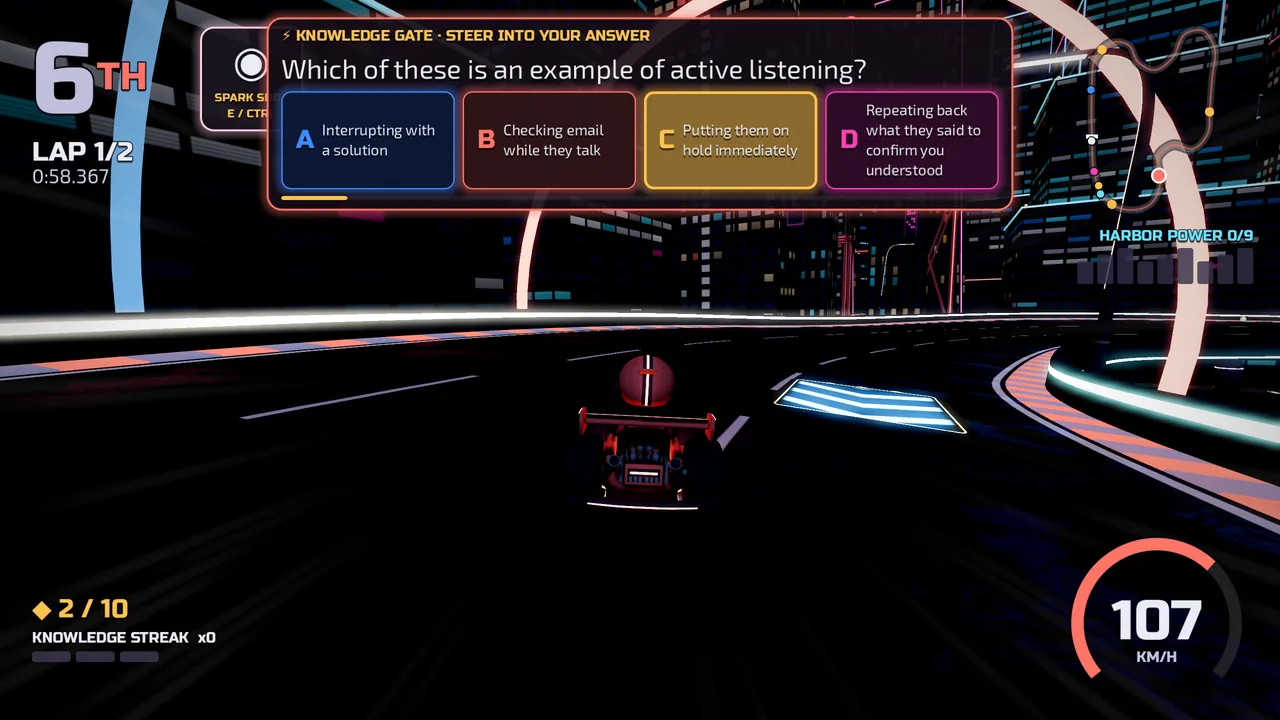
Build a custom learning game in three steps. Pick a game, drop in your questions, then grab a hosted link to embed in Storyline or Rise.
Pick a game
Eight games are live and ready to play.Add your questions
0 questions addedPaste any messy text — questions with answers, study notes, true/false statements, an outline, a transcript. AI will turn it into structured multi-choice questions. If the source only has correct answers, the AI will write plausible distractors.
New to this? Build your questions in Excel or Google Sheets, then save as a CSV. Use one row per question, with these column headers in the very first row:
- question — the question you're asking.
- option_1, option_2, option_3, option_4 — the four answer choices (option_1 is the first choice, option_2 the second, and so on).
- correct_answer — just the letter of the right choice: A = option_1, B = option_2, C = option_3, D = option_4.
- feedback_correct and feedback_incorrect (optional) — what the learner hears for a right or wrong answer.
Here's what it looks like in a spreadsheet:
| question | option_1 | option_2 | option_3 | option_4 | correct_answer |
|---|---|---|---|---|---|
| What does HIPAA protect? | Patient health info | Company profits | Office supplies | Employee salaries | A |
| Spaced repetition works by: | Cramming all at once | Reviewing at spaced intervals | Repeating back to back | Skipping review | B |
In the first row, correct_answer is A, so the right answer is option_1 ("Patient health info"). In the second row it's B, so the right answer is option_2.
Already have a file with option1 / optionA headers? Those still work too.
Upload a Word document. Each question should be a numbered line, followed by 4 lettered options (A, B, C, D), with the correct answer marked with an asterisk * or the word (correct). Example:
1. What does HIPAA protect?
A. Patient health info *
B. Company profits
C. Office supplies
D. Employee salaries
Preview & share
Test your game, then grab a link to drop into Storyline or RiseAdd at least one question first, then click "Build preview" to test your game. When it looks good, click "Generate hosted link" to get a URL to paste into Storyline as a Web Object (or embed in Rise). Storyline setup steps appear once you build or generate.
🎙️ Add the Voice Tutor to Storyline (3 steps)
The tutor uses the learner's microphone, so it needs three things in Storyline. Skip one and the learner sees a "Permission denied" error.
- Add it as a Web Object. Insert → Web Object, paste the hosted link (above) into the Address field, click OK.
- Add the microphone trigger. Slide trigger: Execute JavaScript, when the timeline starts. Paste this exactly:
- Publish to SCORM or Web and open it over https (your LMS or a web host).
⚠️ The mic does NOT work in Preview or Review 360 — test in the published output over https, not a local file.
📦 How to put this in Storyline & let learners continue
- Insert → Web Object, paste the hosted link (above) into the Address field, click OK.
- Publish your course (Web or SCORM) and view it in the published output.
⚠️ Web Objects don't show in Storyline's Preview. The slide looks empty on Preview — that's normal. You'll only see the game once you Publish.