Your character looks fine in the image file. Then you put it in the game, and half its head disappears.
Before asking Claude Code to fix the animation, check what the game is reading. A wrong frame size can turn a good image into a row of cropped pieces.
You can investigate this without replacing the artwork or rebuilding the game. Start with one asset in a practice copy of your project.
What is the difference?
In Phaser, a Sprite is a game object that can display an image and play frame-based animations. A sprite sheet is the image file containing the frames. One is the object in the game; the other is a source it can use. See Phaser's Sprite guide.
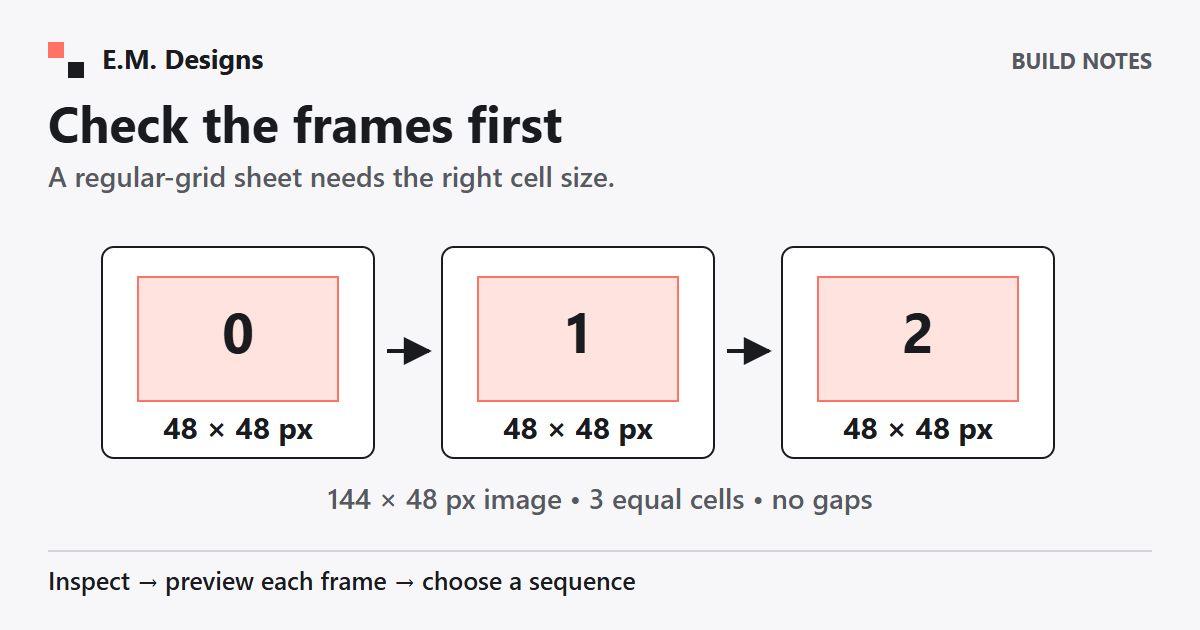
A regular-grid sheet uses equal-sized cells. A packed texture atlas can arrange images of different sizes and needs its frame data. Check which format you have before choosing a loader. Phaser explains texture frames and sheet configuration here.
What should you ask Claude Code first?
Give it the specific asset path and this prompt, which I wrote for this task:
A prompt you can adapt
Check my existing character asset. If it's a regular-grid sprite sheet, identify its frame width and height. Show me the frames before adding a walk animation. Use only the assets I provide.
Add a boundary: inspect the practice copy, keep the original image unchanged, and ask before overwriting important files. Keep permission checks on. Spending, deleting, sending, publishing and accessing another project should still need your approval.
Ask for evidence beside the proposed dimensions: the image's full width and height, the rows and columns, and any gaps between cells. If the layout is ambiguous, have Claude list what needs checking instead of guessing.
How do you check the answer?
Suppose your own sample image is 144 pixels wide and 48 pixels high. If it contains three equal cells with no margins or spacing, each frame is 48 by 48 pixels. Those numbers describe this example, not every character sheet.
In Phaser, that example's loader settings would be:
this.load.spritesheet('practice-character', 'practice-sheet.png', {
  frameWidth: 48,
  frameHeight: 48
});
Use your actual filename and measured dimensions. Account for borders or gaps if the sheet has them.
Preview each numbered frame on its own before creating a loop. Look for a complete character, the same foot position and enough room around the pose. Then view the frames at the size the learner will see. A large preview can hide a problem that becomes obvious in a small game window.
When should you add the animation?
After the frame previews make sense, choose the sequence and speed. Phaser's animation system plays selected frames at a specified rate. A sheet alone does not choose a walk cycle. See how Phaser creates frame sequences.
Have Claude show which frames it selected and why. A row might contain idle, walking and jumping poses together. Playing every cell in order could mix actions you never intended.
If the character jitters, compare its alignment across the individual frames before changing the movement code. Keep a copy of the working settings so you can return to them.
What is a useful stopping point?
A small success is a correctly cropped set of frames and one clear loop in your practice project. That is enough to check before connecting animation to player movement.
For a learning game, ask what the movement helps the person notice or do. An animated character can support navigation or feedback, but it does not prove that the practice teaches the right decision.
Get the image reading correctly first. Then decide whether animation earns its place in the experience.
Want to Build a Learning Game With Your Team?
I help teams turn their own learning content into playable practice and learn the building process as we go.
Explore working together